
Instanet
Help Center
HOW TO SET UP THE LIVEBOX INTERNET BONDING DEVICE?
Double, triple, quadruple your Internet speed by using the Livebox Internet Bonding device. If you are facing network failover or if you want to maintain the bandwidth robustness while on live, you can gallop your current Internet connections to new speeds by using this bonding device.
To initially set up your Livebox Bonding device,
Turn On the Livebox Internet Bonding device.
And access the device interface on your PC using the IP 192.168.95.1.
On the device interface, pick up the Device ID and Hardware Key and send it to the IVB7 support team through Email.
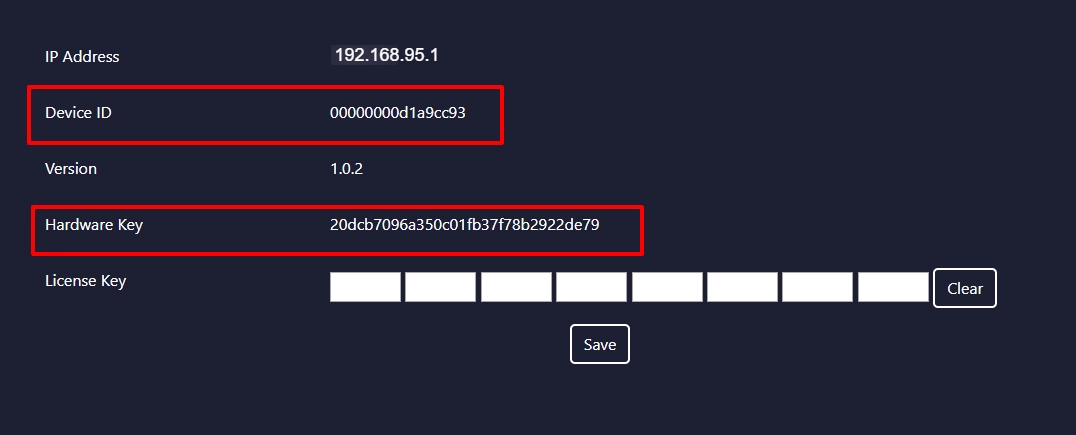
The IVB7 support team, in turn, will send you the License Key.
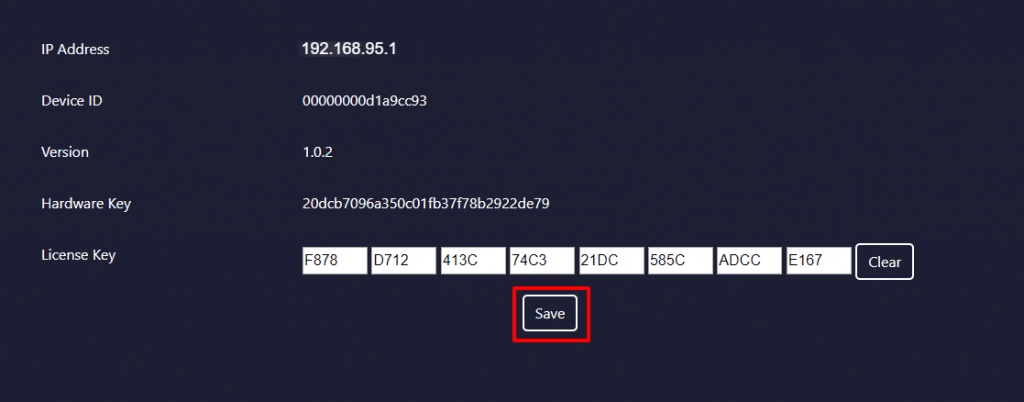
So, after entering the License Key, you can click Save.
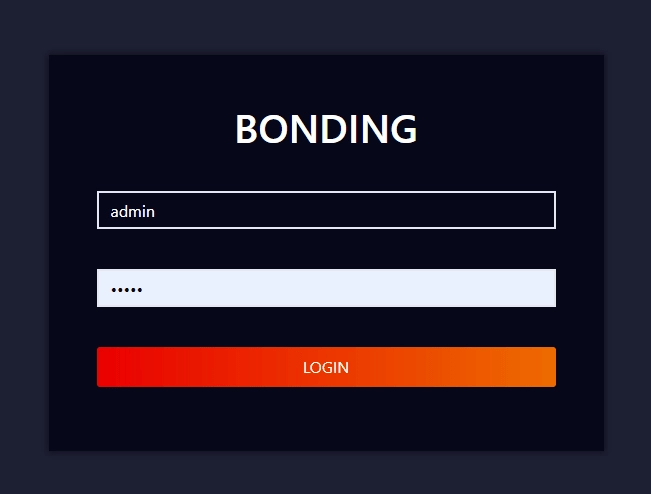
Now you will be taken to the Livebox Bonding device login interface and you can login. (The IVB7 team will provide you the login credentials)
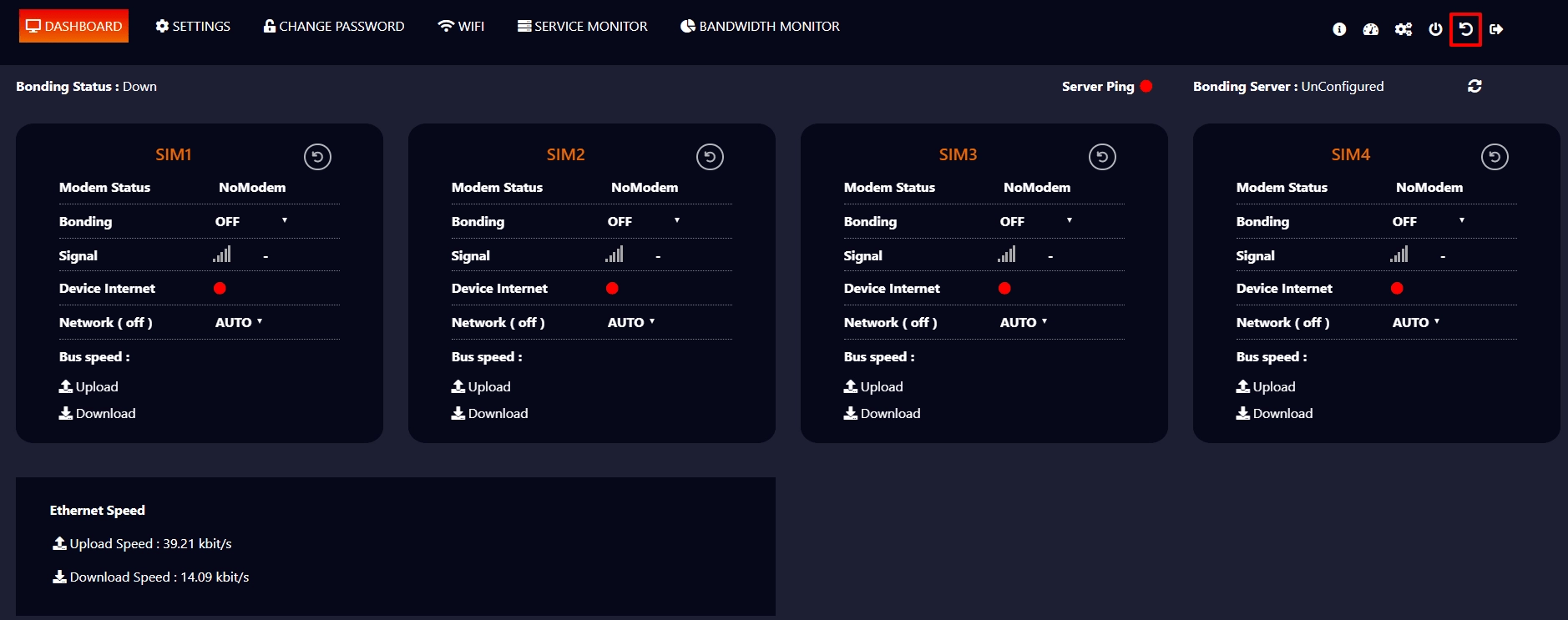
Back on your system interface, you have to reboot the server first.
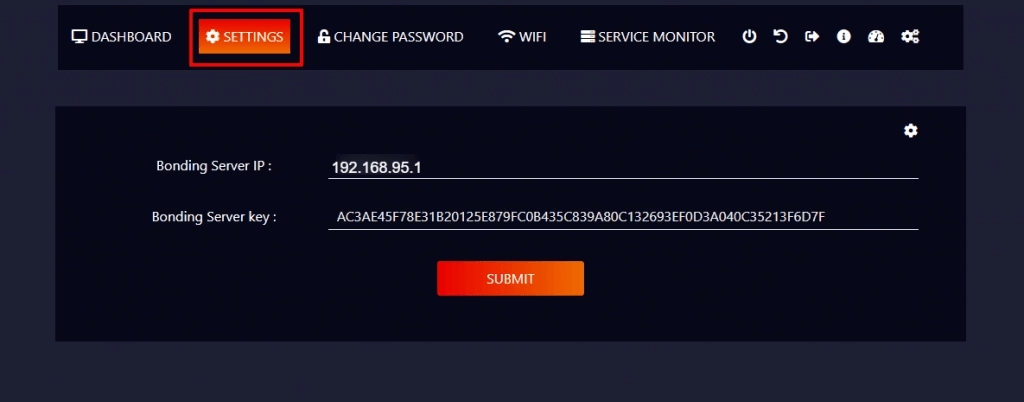
Then go to “Settings” to configure your Bonding device.
To configure the device, enter the Server IP and Server Key provided by the IVB7 team and click “Submit” button.
Now “Insert SIM cards” with data in the slots given on the device.
Then you have to reboot each SIM card.
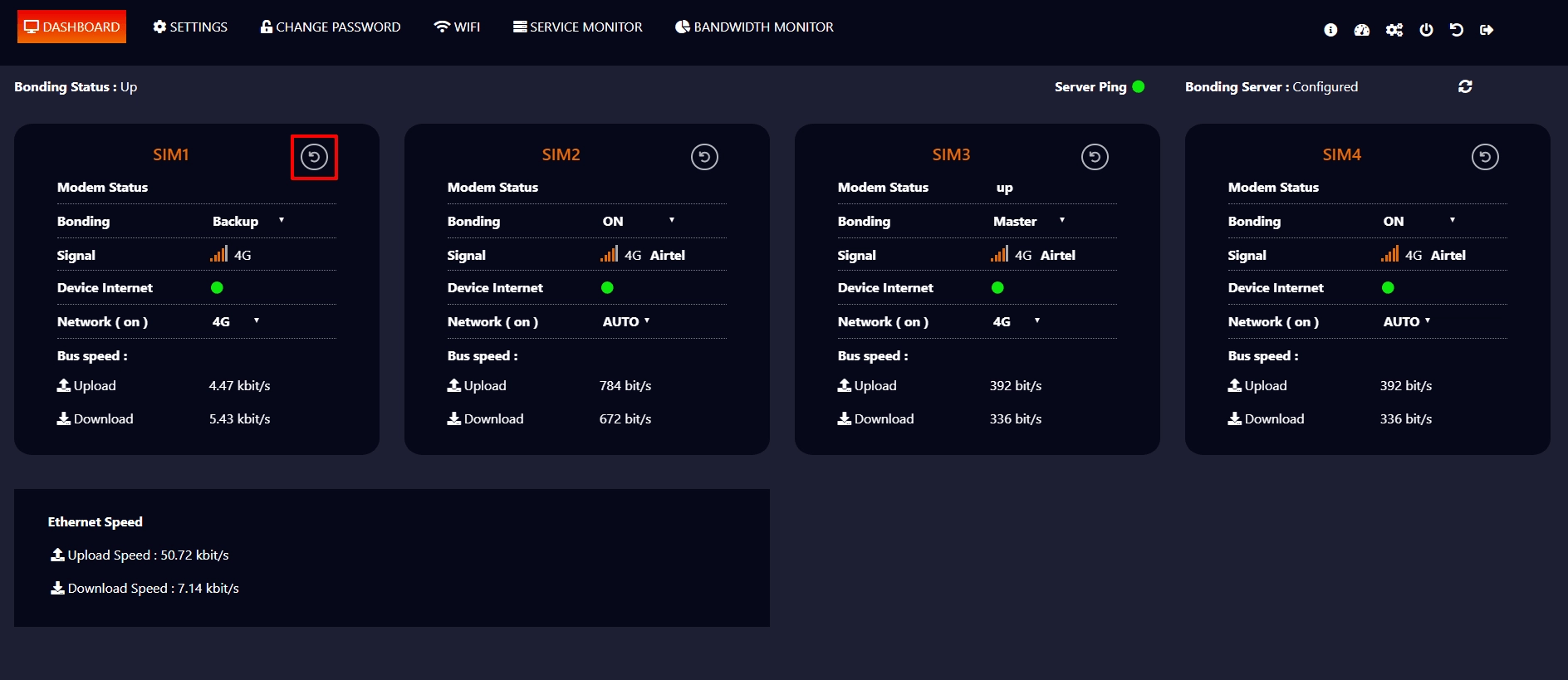
Then you can set your SIM cards status.
Notes:
- Master- When you set a SIM as Master, it plays the role of the main SIM card.
- Backup- When the Master SIM card fails, the Backup SIM becomes the Main card.
- ON- All the turned ON SIM card data combines to the Master SIM card.
- OFF- You can Turn OFF the SIM you are no longer using.
You can also select the Network for each SIM card.
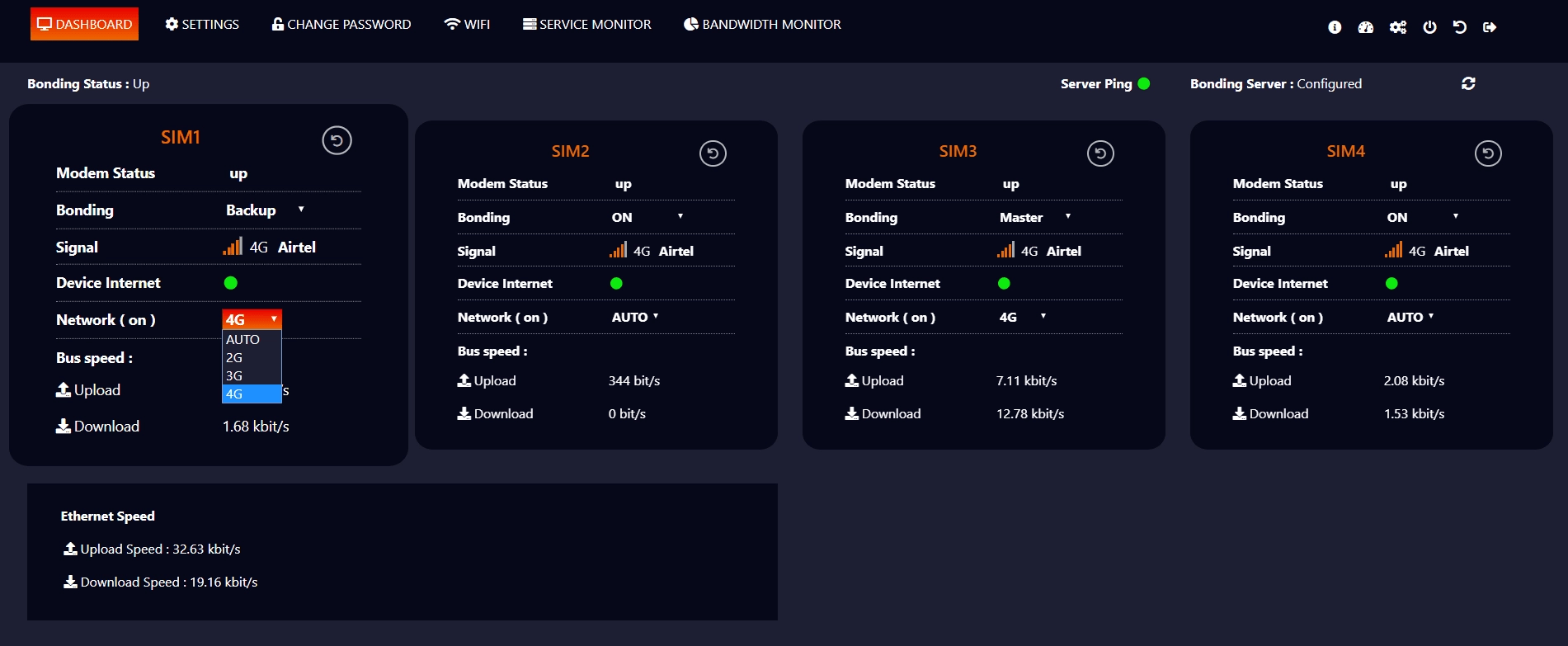
Once you set up the above settings, the bonded Internet of your SIM card data will take into new speeds.
And you can use your blazingly-fast bonded Internet either through LAN or Hotspot option.
This document was last updated on May 10, 2021